

Register Marks
The software needs to know the positions and the geometry of the marks to find them out in the camera positioning cutting.
Select the mark which you want to set as the first, click  on Cut Property Bar to register it up.

The software will put a red sign at the center of the mark, and change the color of the mark to light gray which is set to no cutting, refer to Layers for more details.

Select the rest marks one by one and click  on Cut Property Bar to register them up. Or click
  to let the software do it automatically in one step.
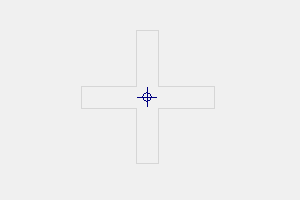
The software will put blue signs at the center of the rest marks, and change the color to light gray.
If there is something wrong with the registration, select the mark and click  on Cut Property Bar to delete it. The function will delete all the marks if nothing selected.
NOTE
The marks in the design actually just tell the position and nothing more, they could be different in geometry with the marks on the work piece.
The registration only tells the software where to find the marks, you still need to set up the mark geometry.

The software provides a group of pre-defined shapes, including circle, cross, diamond, etc. Choose a shape and set up the dimension according to the marks on the work piece.
Or, you can define your own mark geometry. Check Definition and click Modelset to bring up the dialog.

Click CreateMod to take a shot of a mark on the work piece, click GetFeature to extract geometries from the image in the valid zone, select and delete all but only the geometry of the mark, click OK to complete.
NOTE
We highly recommend to use the pre-defined mark geometry, it is easy to use and already covers almost all the common cases.